The Social Scheduler is where you plan, write and schedule posts for Instagram and Facebook from the same place as your catalog and your pictures. This guide walks through the first setup and your first scheduled post.
What you will set up: your connected accounts, a first post scheduled on the calendar, and a clear view of what is upcoming, drafted and published.
How long it takes: about 15 minutes, most of it spent on the first caption.
Before you start
- A Facebook Page, and an Instagram Business account linked to it if you want to post to Instagram. Ardealy connects through Facebook, so you sign in with the Facebook account that manages the Page.
- Pictures in Content Studio. The post form takes its pictures from your Content Studio projects. There is no direct upload on the form, so create or generate the pictures you want in Content Studio first.
- A rough idea of what to post this month, for example two posts a week around the products you want to sell.
Everything lives in the Marketing workspace. Open the workspace switcher at the top of the sidebar, choose Marketing, then look for the sidebar group Social with three items: Calendar, Posts and Accounts.
Step 1: Connect your accounts
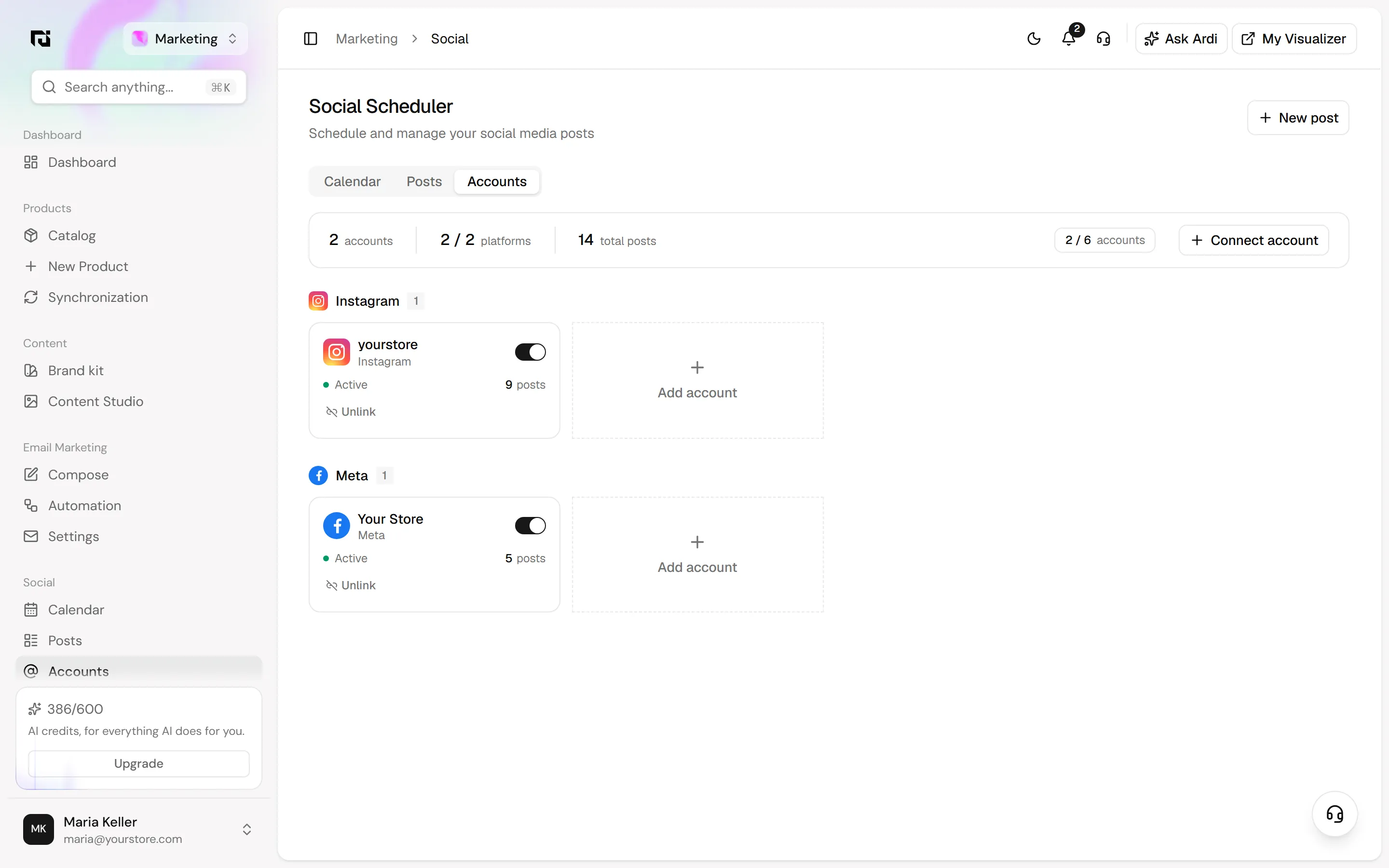
- Open the Accounts tabGo to Marketing › Social › Accounts. The page is titled Social Scheduler and has three tabs: Calendar, Posts and Accounts.
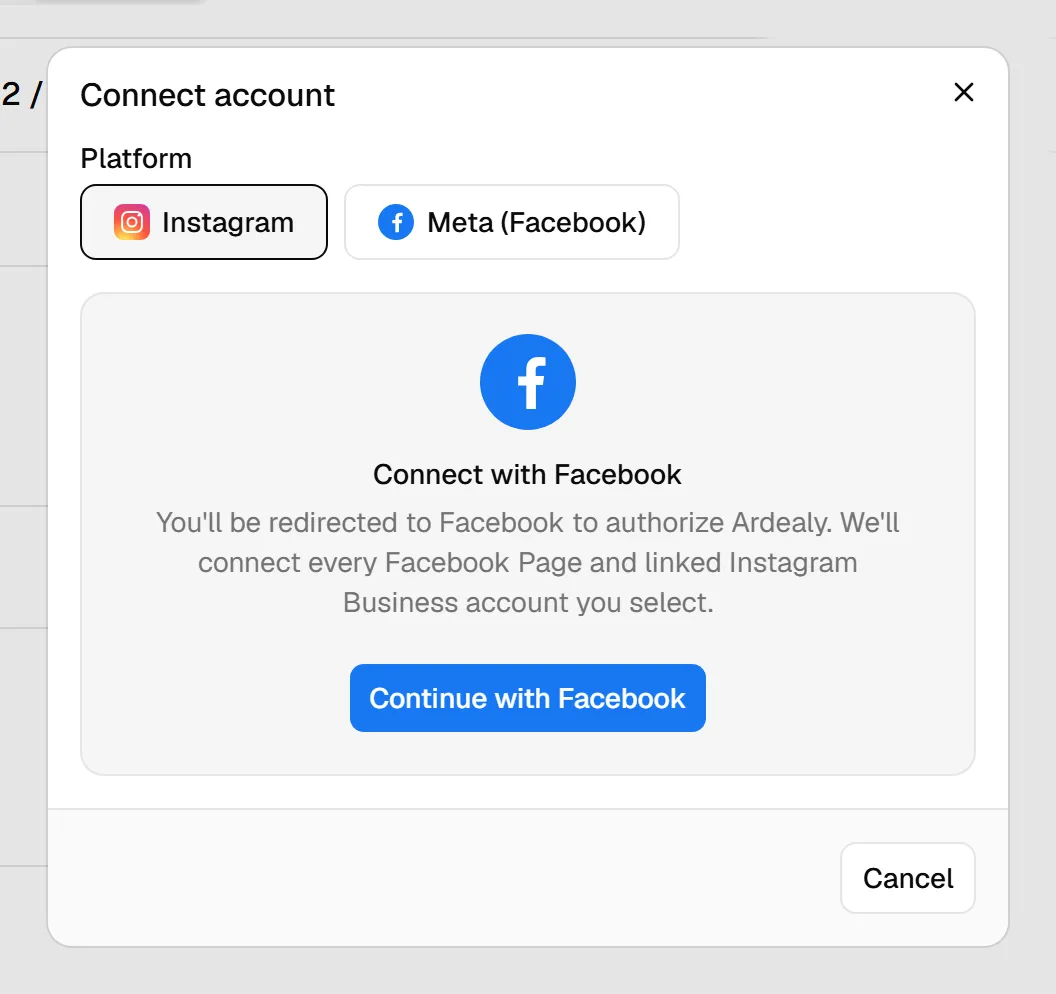
- Click Connect accountThe button sits on the right of the summary strip. You can also click "Add account" next to a platform you already use.
- Pick the platform and continue with FacebookChoose Instagram or Meta (Facebook), then click "Continue with Facebook". You are sent to Facebook to authorize Ardealy, and every Facebook Page and linked Instagram Business account you select there is connected.
Back in Ardealy, each connected account gets its own card with its status, how many posts it has, an on/off switch and Unlink. The strip at the top shows how many accounts and platforms you have connected and how many your plan allows.
Step 2: Find a day on the calendar
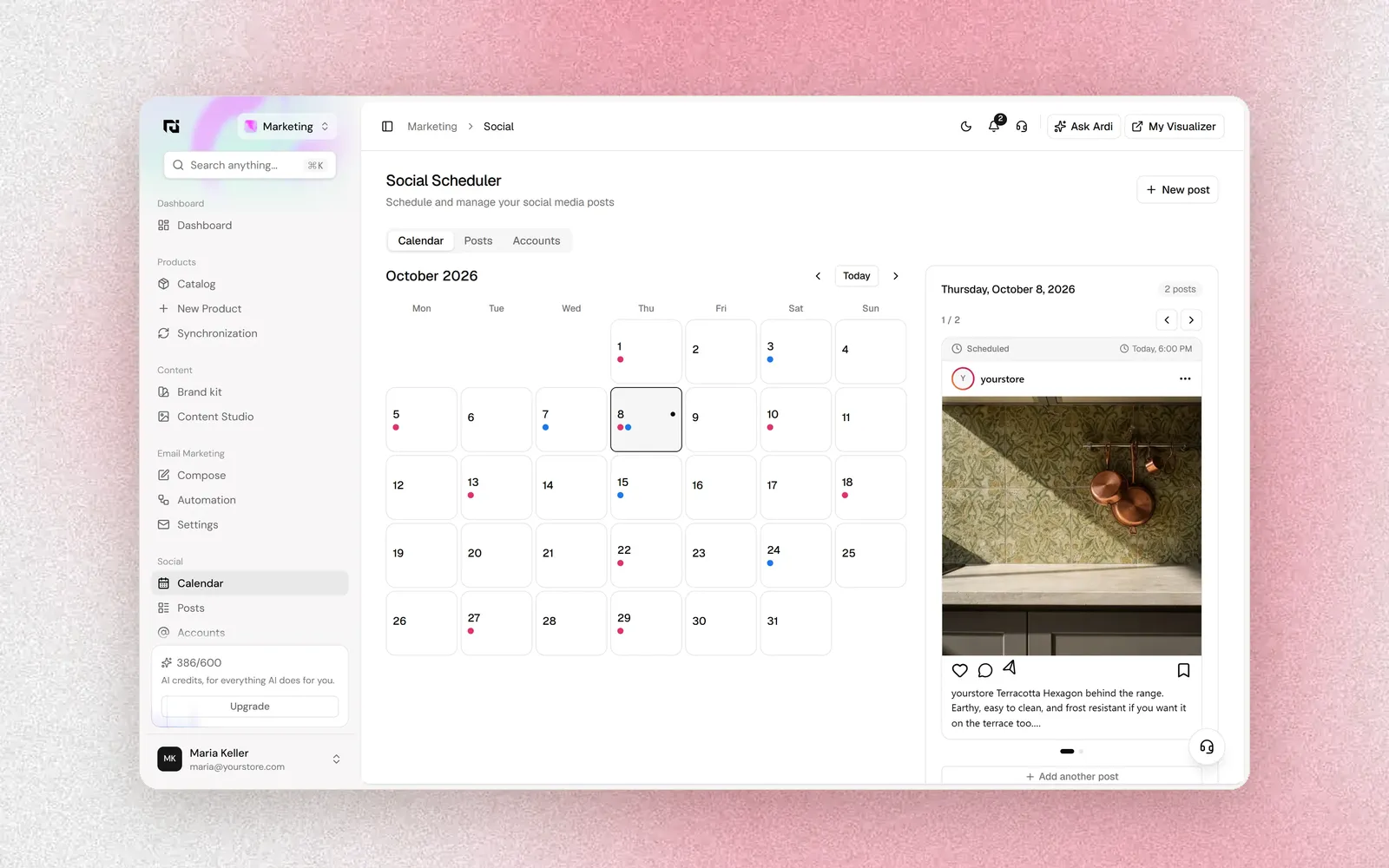
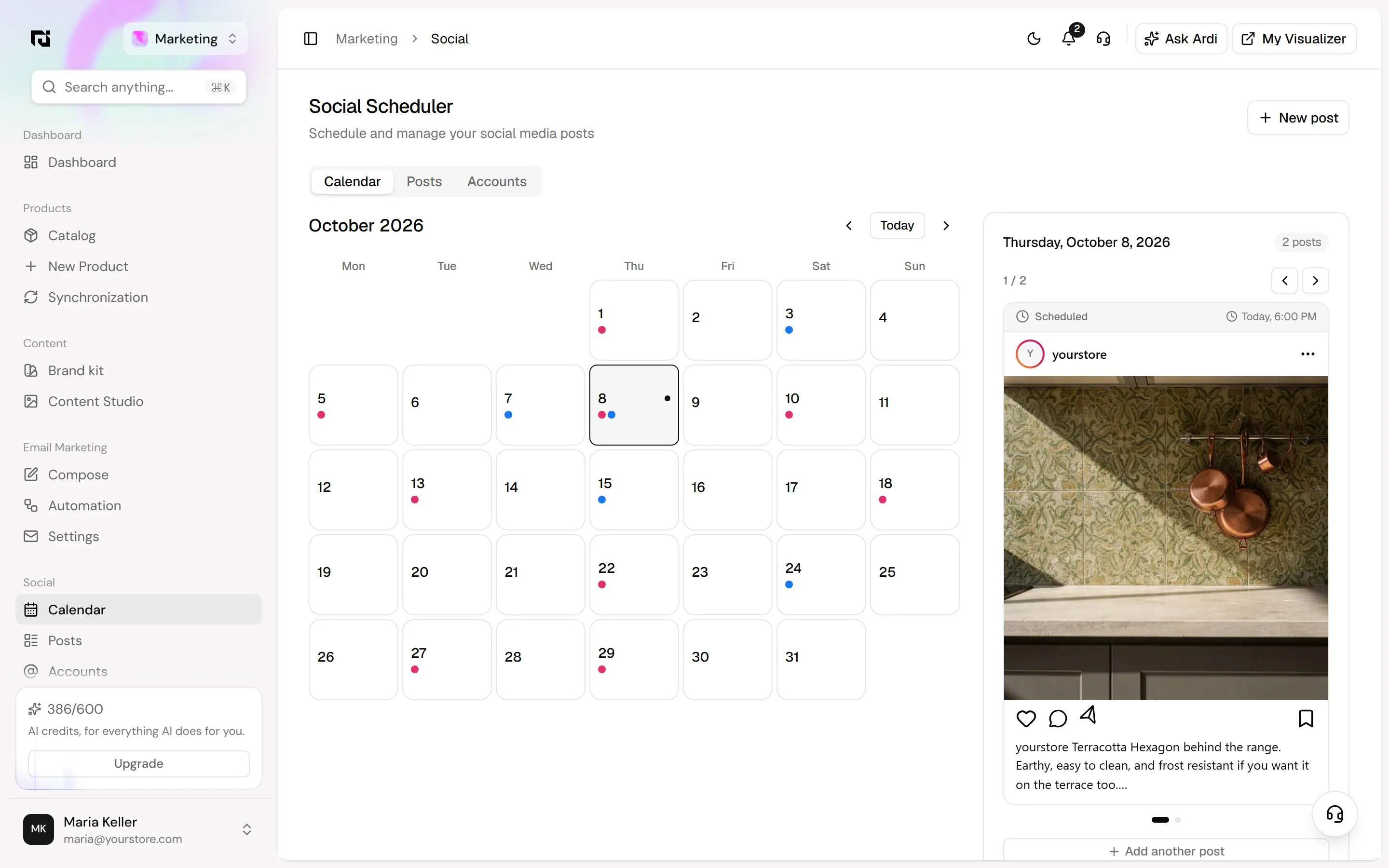
Open Marketing › Social › Calendar. You see the month with a colored dot for each post: pink for Instagram, blue for Meta. Use the arrows and "Today" to move between months.
Click a day to see its posts in the side panel, previewed the way they will look on the platform. If the day has posts already, use "Add another post". If it is empty, use "Schedule a post". Either way, the new post opens with that date filled in at 12:00.
Step 3: Build the post
You can also start from the "New post" button at the top right of any Social Scheduler tab. The form has the same fields either way.
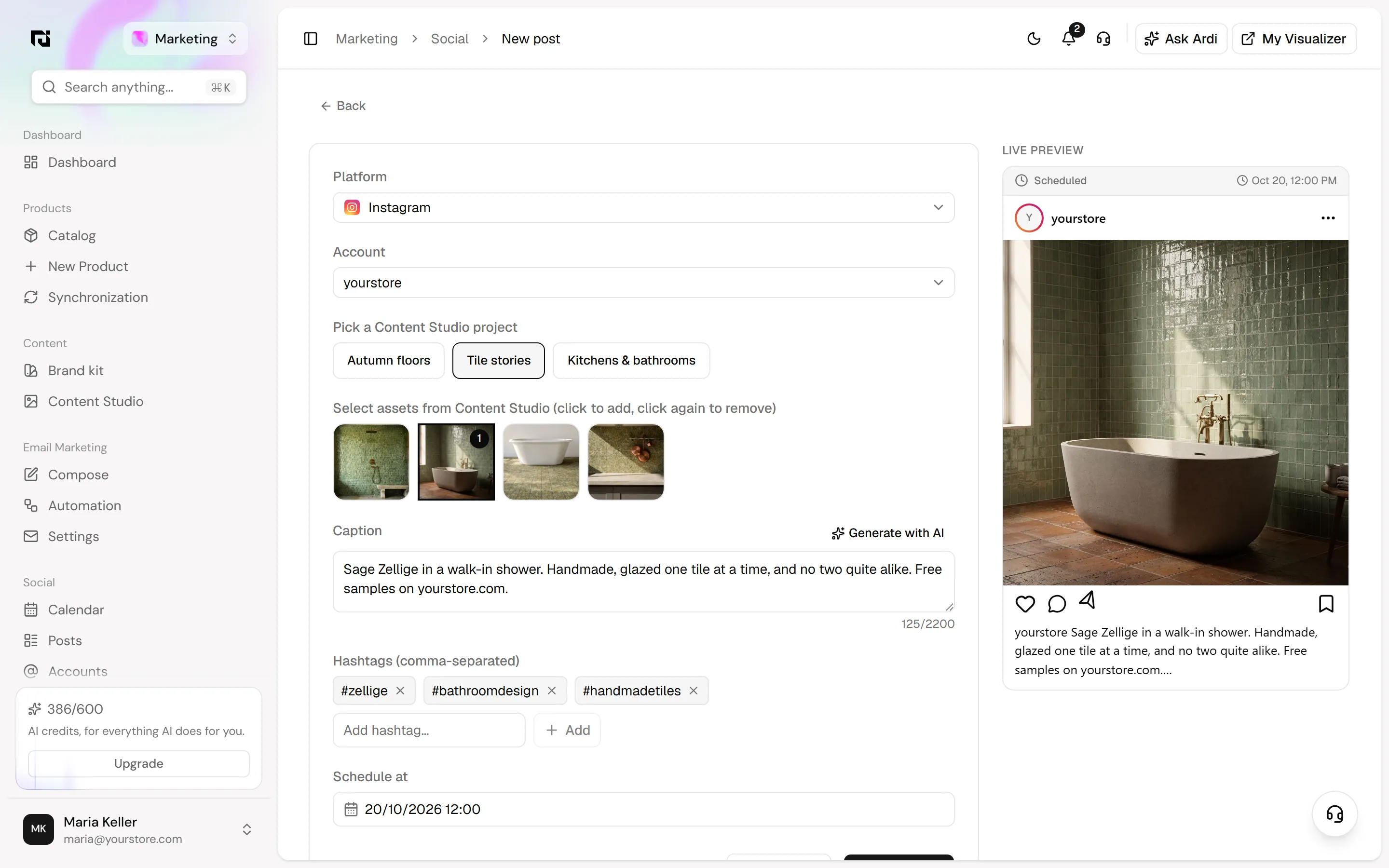
- Choose Platform and AccountPick Instagram or Meta, then the account to post from.
- Pick a Content Studio projectThe projects you made in Content Studio appear as buttons. Click one to see its pictures.
- Select the picturesClick a picture to add it and click again to remove it. Each selected picture is marked with a number. Choose several and the post becomes a carousel.
- Write the captionType it yourself or click "Generate with AI" for a first draft, then edit it. A counter under the box shows how much of the platform's limit you have used.
- Add hashtagsType a hashtag and click Add, or paste several separated by commas. Remove one with its small cross.
Step 4: Schedule it or save a draft
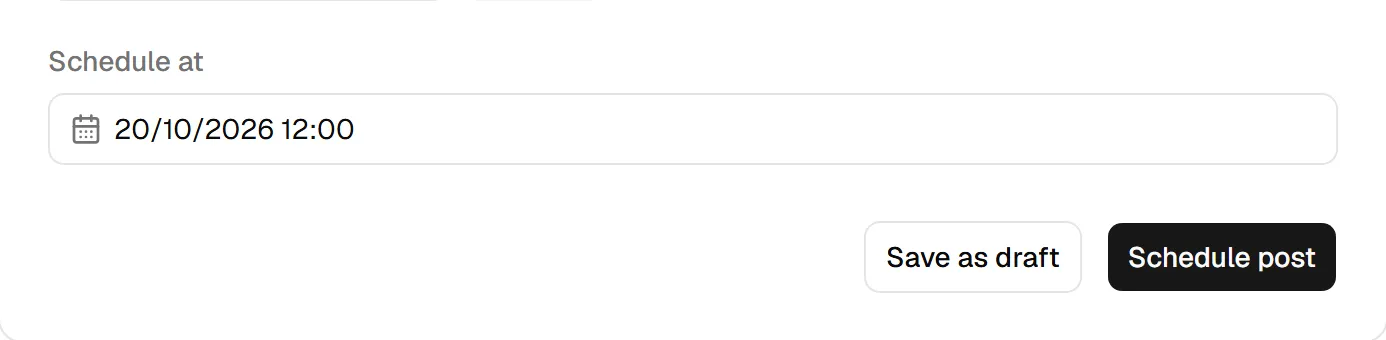
At the bottom of the form, set "Schedule at" to the date and time you want the post to go out. Then choose:
- Schedule post to put it in the queue. It is published on its own at that time.
- Save as draft to keep it without scheduling. Nothing is published until you open it again and schedule it.
Step 5: Review your posts and make changes
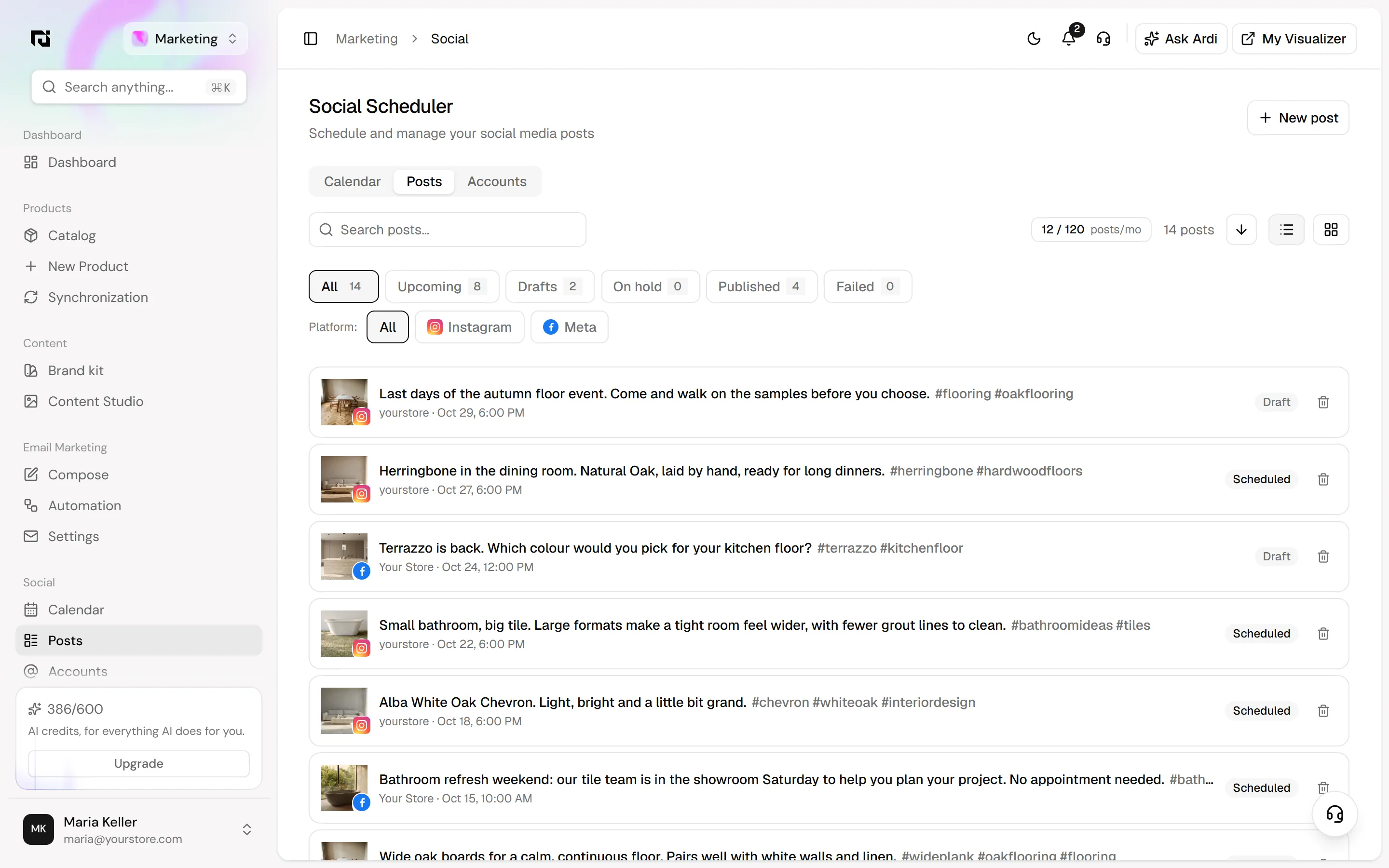
Open Marketing › Social › Posts to see every post in one list. Filter by status (All, Upcoming, Drafts, On hold, Published, Failed) or by platform, search by caption, and switch between list and grid views. The chip at the top shows how many posts you have used this month against your plan.
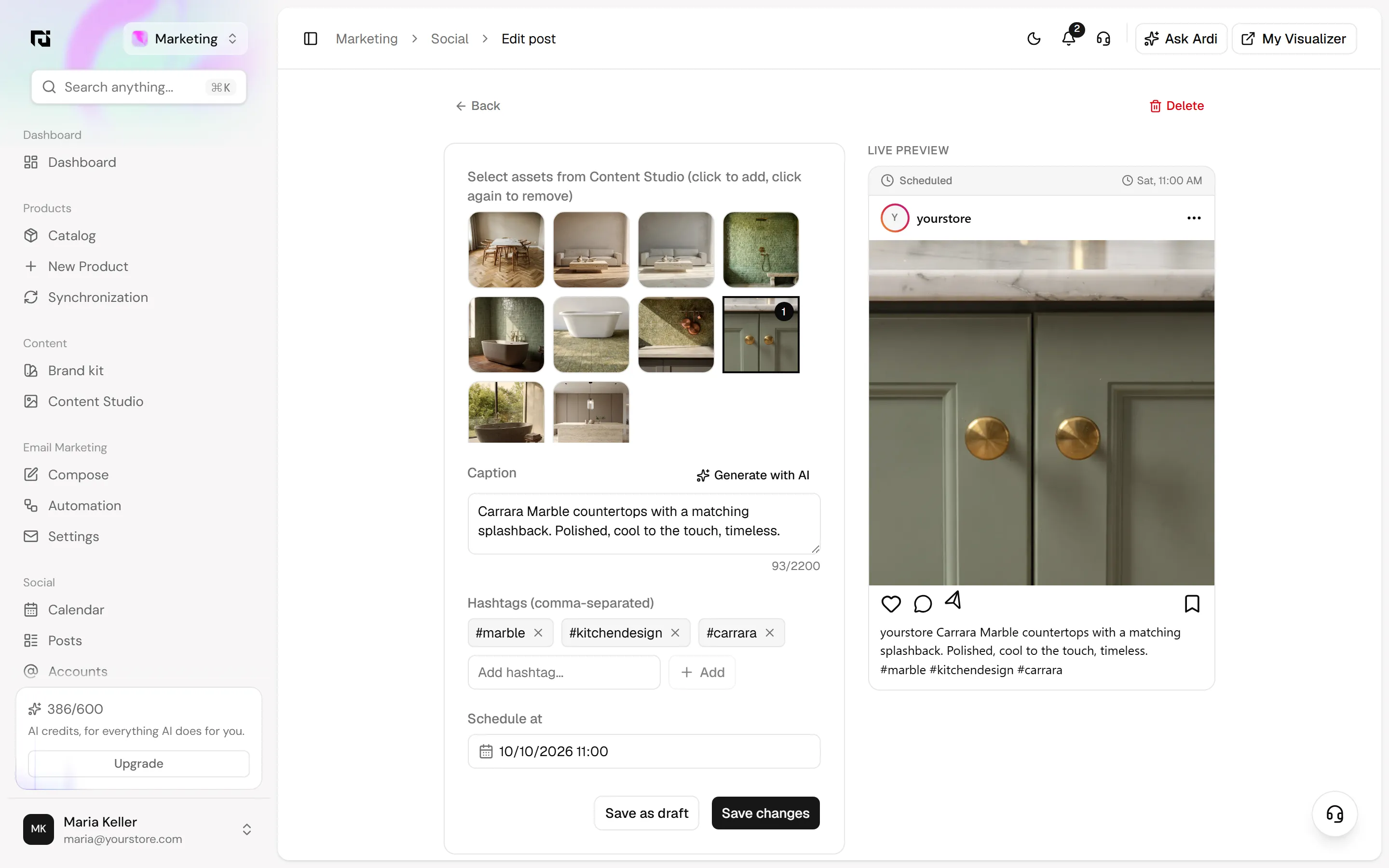
Click any post to open it. For a scheduled post or a draft you can change the pictures, caption, hashtags and time. The platform and account are fixed once the post exists.
- Save changes keeps your edits. For a draft it also schedules it.
- Save as draft takes a scheduled post out of the queue.
- Delete at the top right removes the post.
Tips and common mistakes
- Pausing an account puts its posts on hold. The switch on an account card pauses it. Its scheduled posts move to On hold and wait until you switch it back on. If posts stop going out, check the Accounts tab first.
- Your pictures must be in Content Studio first. If a project does not show up on the form, open Content Studio and check the pictures were saved to it.
- Keep an eye on the Failed filter. A post that could not be published shows up there, so check it after each busy week.
- Use drafts for ideas. A draft never goes out by itself, so it is a safe place for posts you are still thinking about.
Posts your AI team proposes
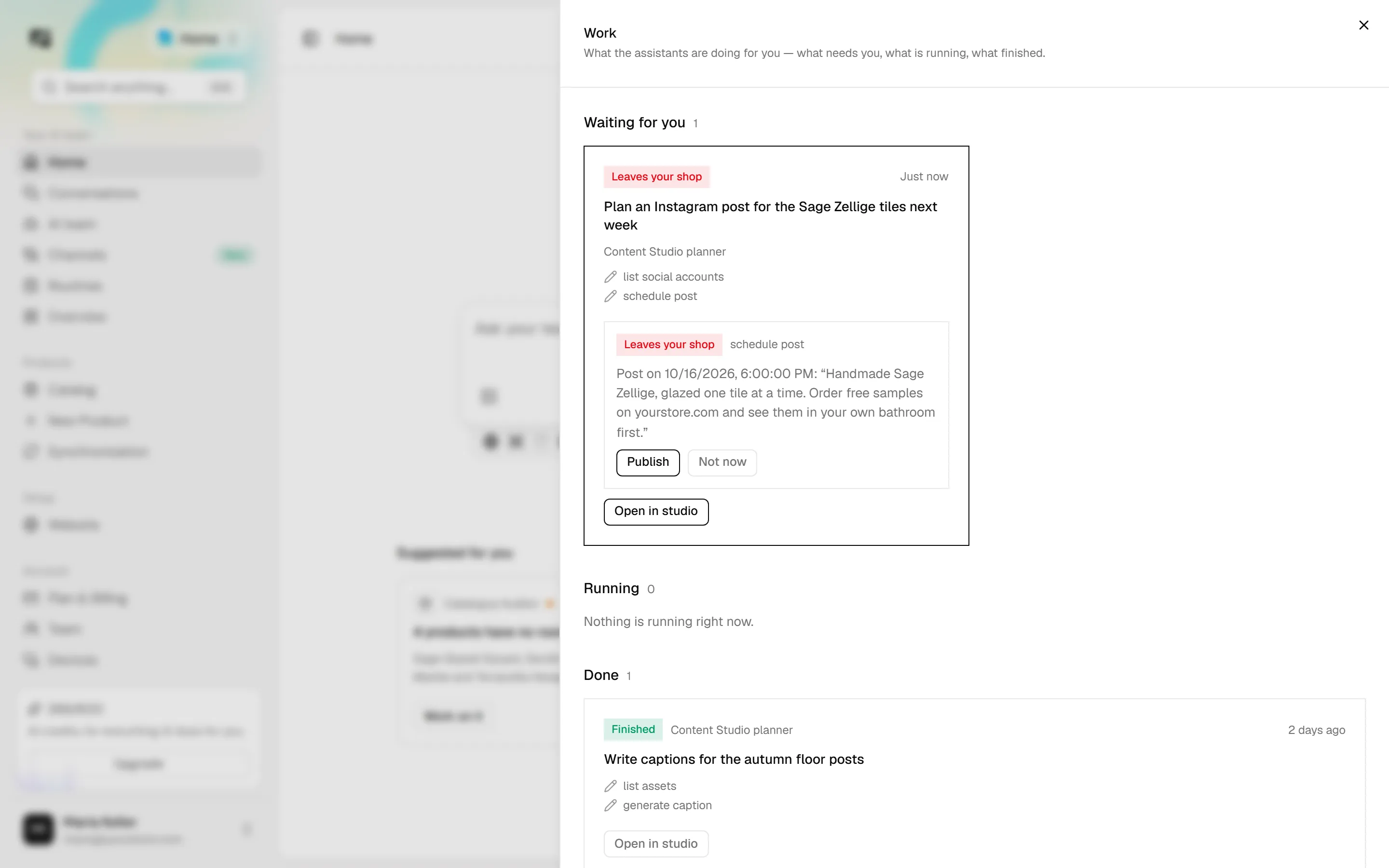
The Social Scheduler has no review step for posts your own team writes: a post is either a draft or scheduled. Posts proposed by AI are different. When the Content Studio planner prepares a post for you, it is not scheduled. It waits for your approval, because publishing puts something public under your name.
You see it on the Home workspace as the "To approve" count. Click it to open Work, where the post sits under "Waiting for you", tagged "Leaves your shop", with its time and caption. Click Publish to approve it or Not now to decline. "Open in studio" takes you to the work behind it.
How to check it worked
- The post appears on the calendar as a dot on its day, and under Upcoming in the Posts tab.
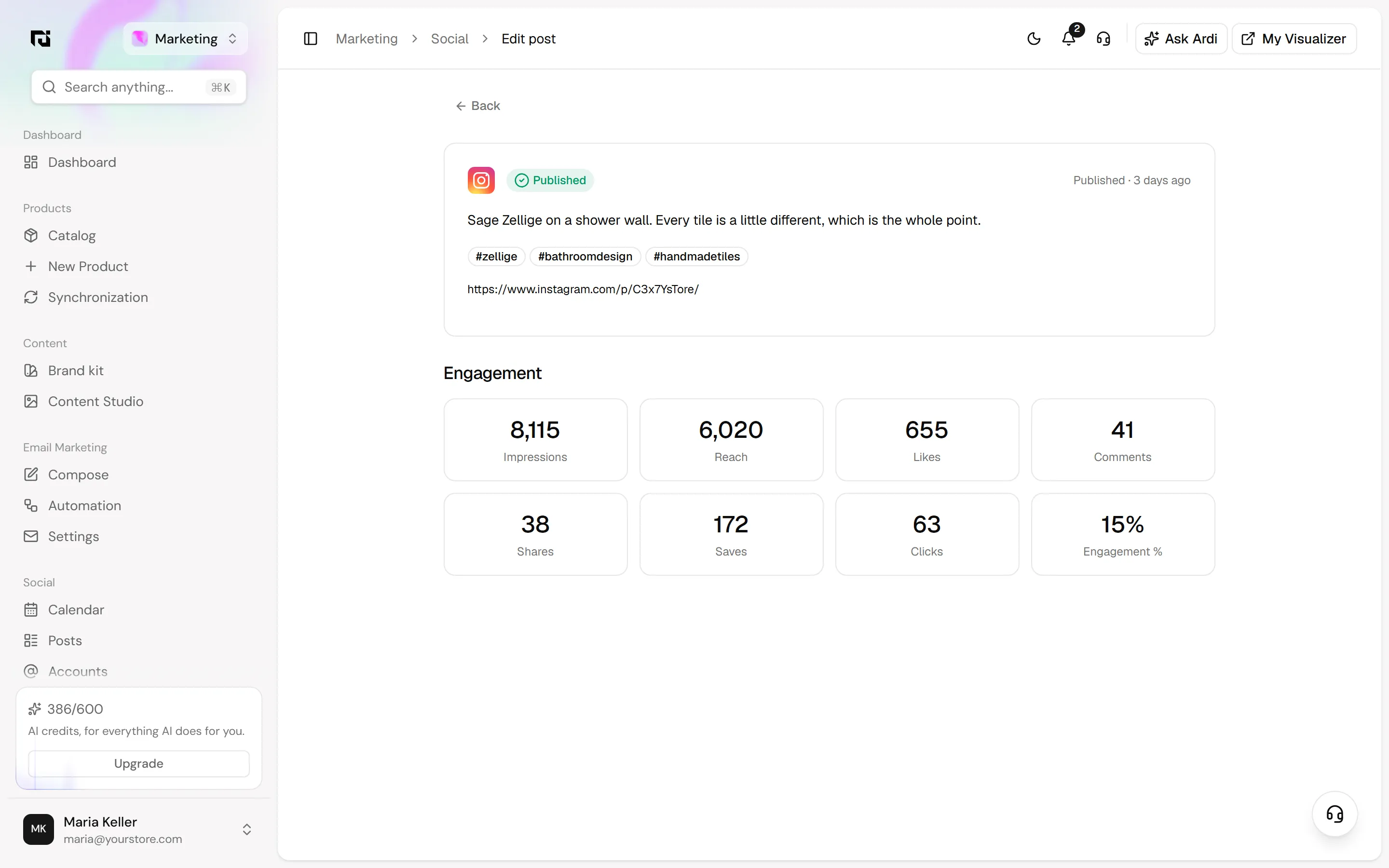
- After its time, it moves to Published. Open it to see the caption, hashtags and a link to the live post, followed by Engagement: Impressions, Reach, Likes, Comments, Shares, Saves, Clicks and Engagement %. These figures are collected every hour.
FAQ
Can I upload a picture straight into a post? No. Pictures come from your Content Studio projects. Add or generate them there, then pick them on the post form.
Can I post to TikTok, LinkedIn or Pinterest? Not today. The Social Scheduler connects Instagram and Meta (Facebook).
Can I move a post to another account after creating it? No. Platform and account are fixed. Delete the post and create a new one on the right account.
Does the AI ever publish without asking? No. A post the AI team proposes waits under "Waiting for you" until someone clicks Publish. Posts you schedule yourself go out at the time you set.
How do I stop a scheduled post? Open it and click "Save as draft". It leaves the queue and stays as a draft.
Next steps
Once your first few posts are in, plan a whole month on the calendar and let the Content Studio planner suggest the gaps, with you approving each one. See how the Social Planner fits with the rest of the marketing team, or talk to us if you want help setting up your accounts.