The Business workspace in Ardealy reads your website the way search engines and shoppers see it, then puts you next to the sites competing for the same searches. This guide shows where to find each page, what the figures mean, and the first things worth doing with them.
What you will get: a clear picture of how often you are found in search, who you compete with, the searches you are missing, and the problems on your home page.
How long it takes: the first analysis runs in about a minute. Reading the results properly takes 20 to 30 minutes.
Before you start
- Your website address. When you first set up Ardealy, the "Let's read your business" step asks for it and starts the analysis with "Analyse my business". If you skipped it, the Business pages show "Nothing has been analysed yet" with a "Go to my dashboard" button to take you back.
- AI credits for a fresh run. You can ask Ardi for a new full analysis at any time. It arrives as a proposal tagged "Costs credits" with the amount shown, and only runs once you click Apply.
- A list of what you sell and where. It helps you judge which missing searches actually matter to your shop.
Step 1: Open the Business workspace
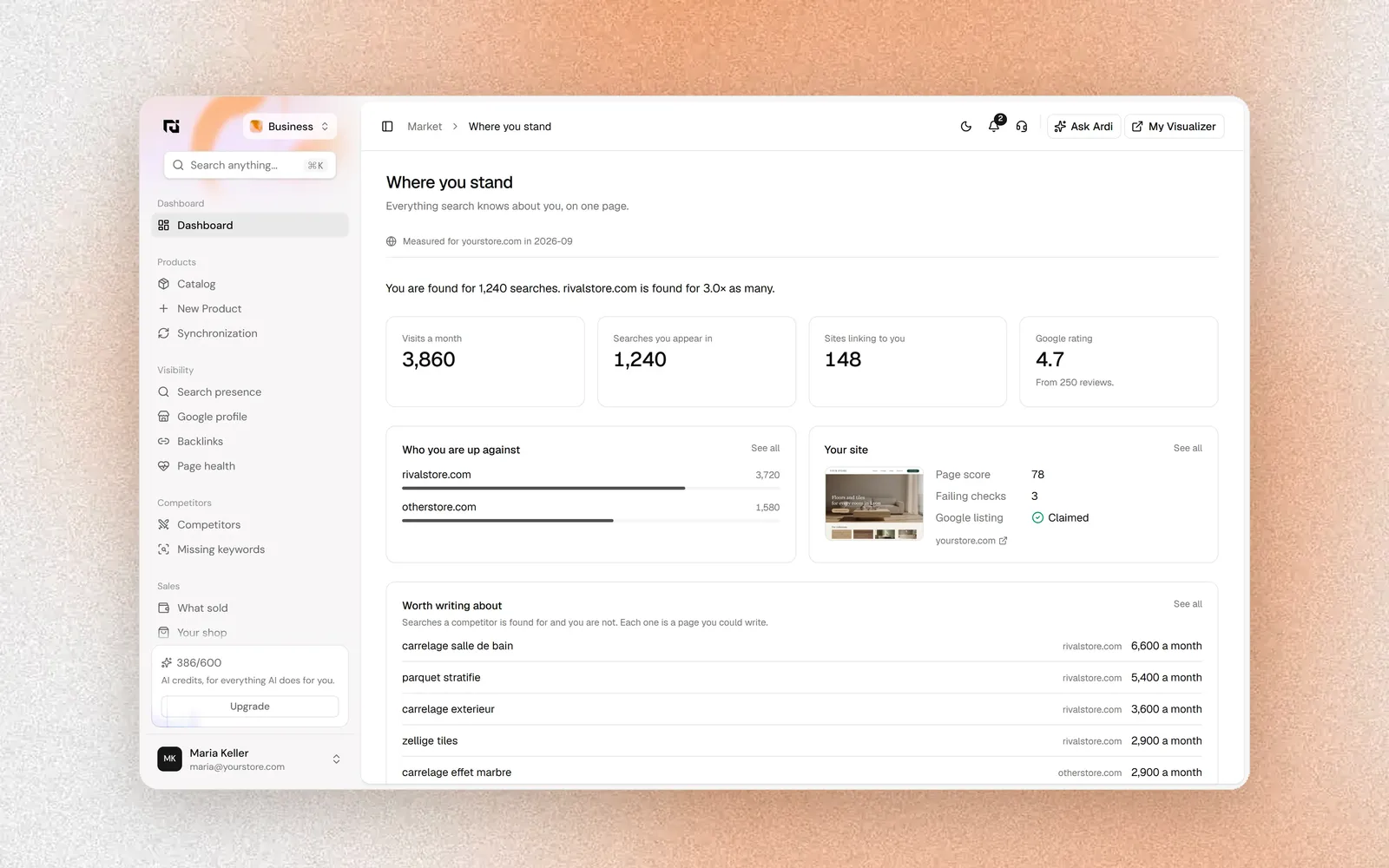
Open the workspace switcher at the top of the sidebar and choose Business (search presence, competitors and sales). It opens on the Dashboard, titled "Where you stand".
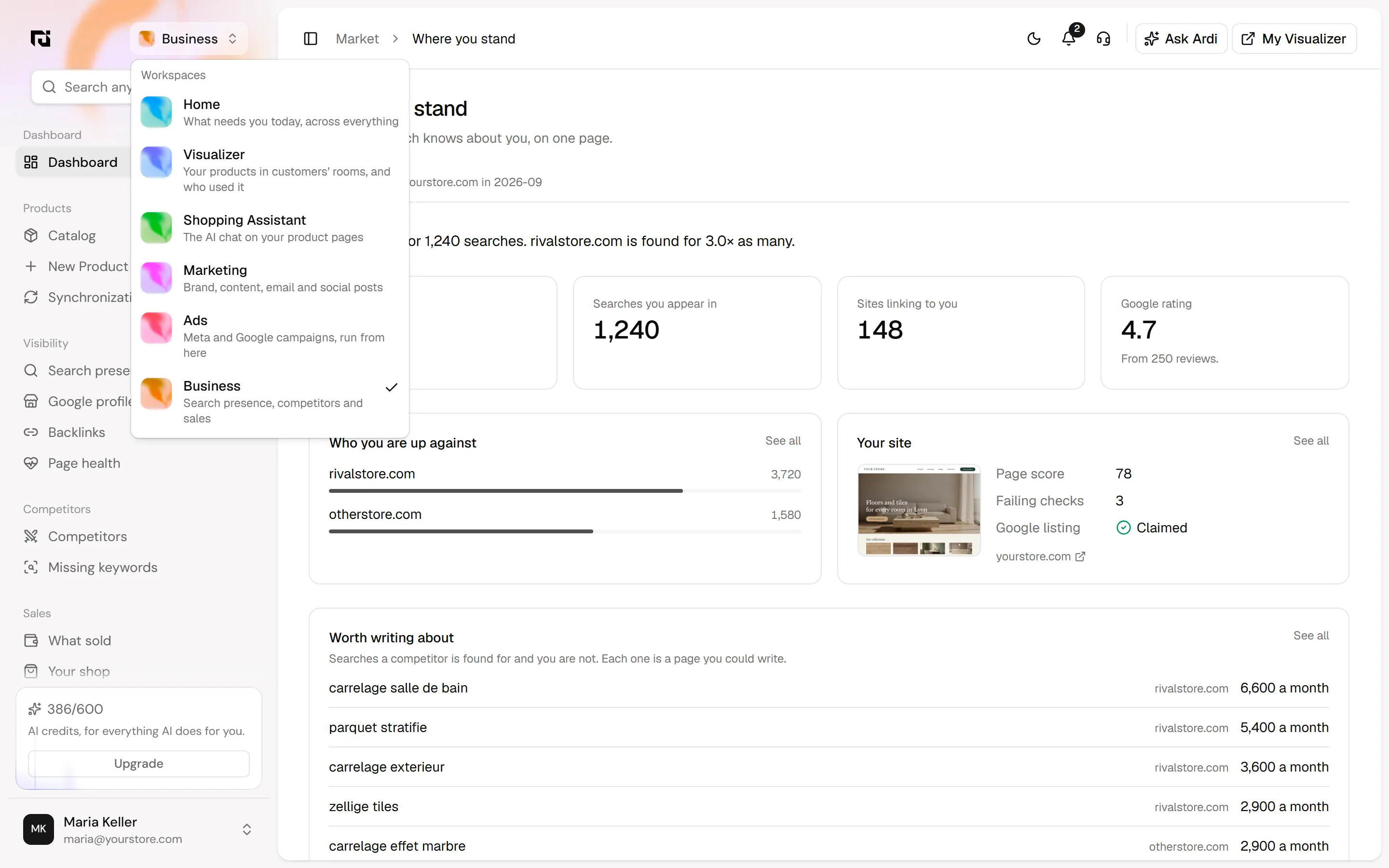
The sidebar then has four groups: Dashboard; Visibility (Search presence, Google profile, Backlinks, Page health); Competitors (Competitors, Missing keywords); and Sales (What sold, Your shop).
Step 2: Read "Where you stand"
The Dashboard puts the most important numbers on one page.
- Read the verdict lineOne sentence compares you with your strongest competitor, for example: "You are found for 1,240 searches. rivalstore.com is found for 3.0x as many."
- Check the four figuresVisits a month, Searches you appear in, Sites linking to you, and your Google rating with its number of reviews. Each figure opens its detail page.
- Look at the two panels"Who you are up against" lists your competitors with how many searches each is found for. "Your site" shows a picture of your home page, its page score, the number of failing checks and whether your Google listing is claimed.
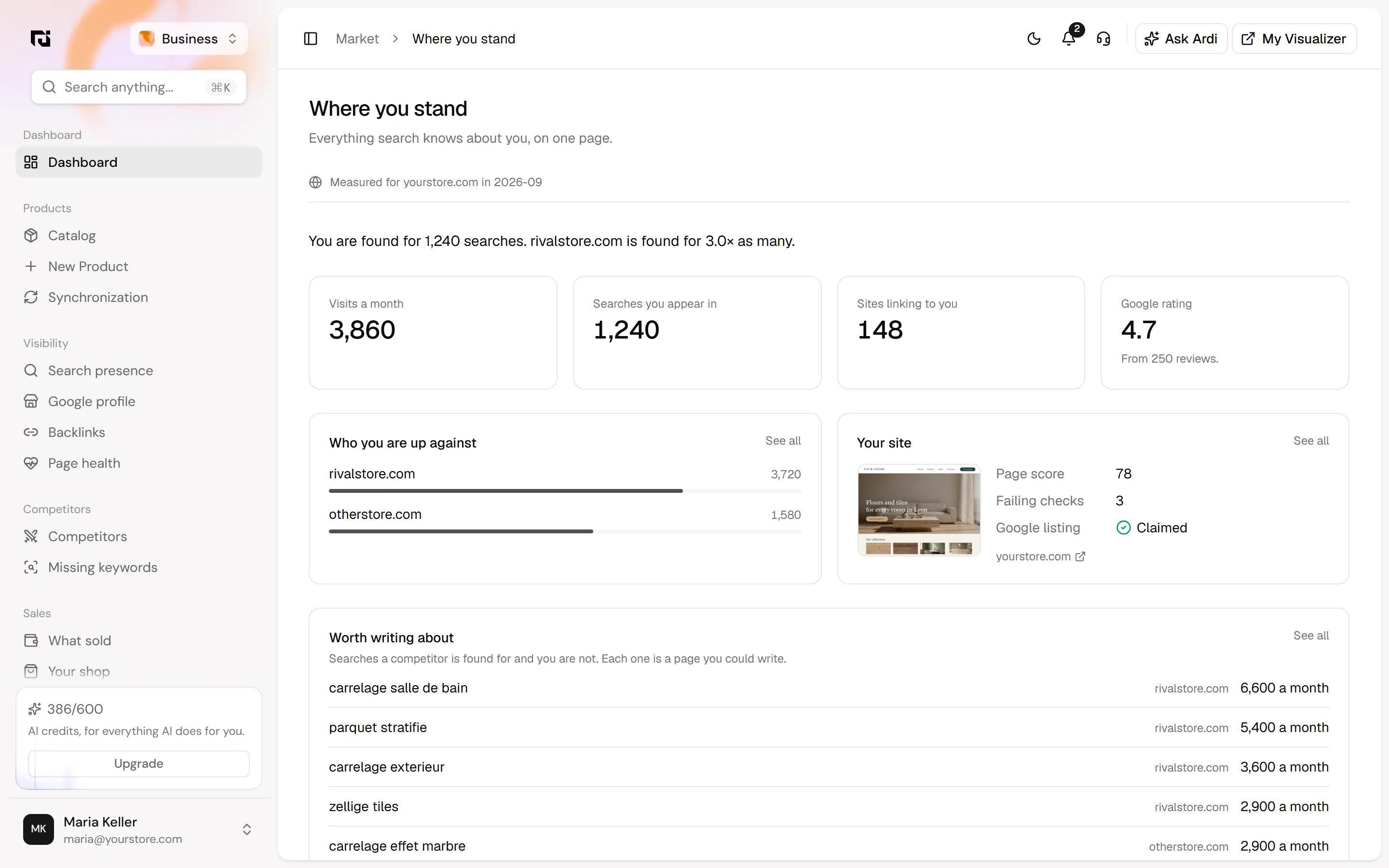
Every panel has a "See all" link to its full page.
Step 3: Find what is worth writing about
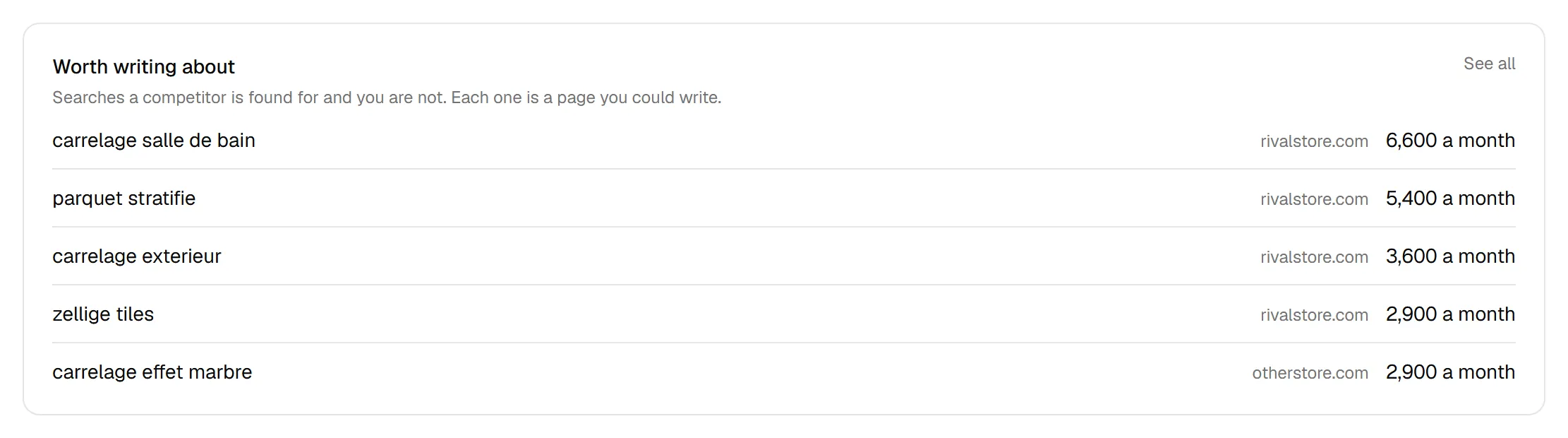
At the bottom of the Dashboard, "Worth writing about" lists the five biggest searches a competitor is found for and you are not, with the competitor and how many people search it each month. Each one is a page you could write: a category page, a buying guide or a product page that answers that search.
Step 4: See who you compete with
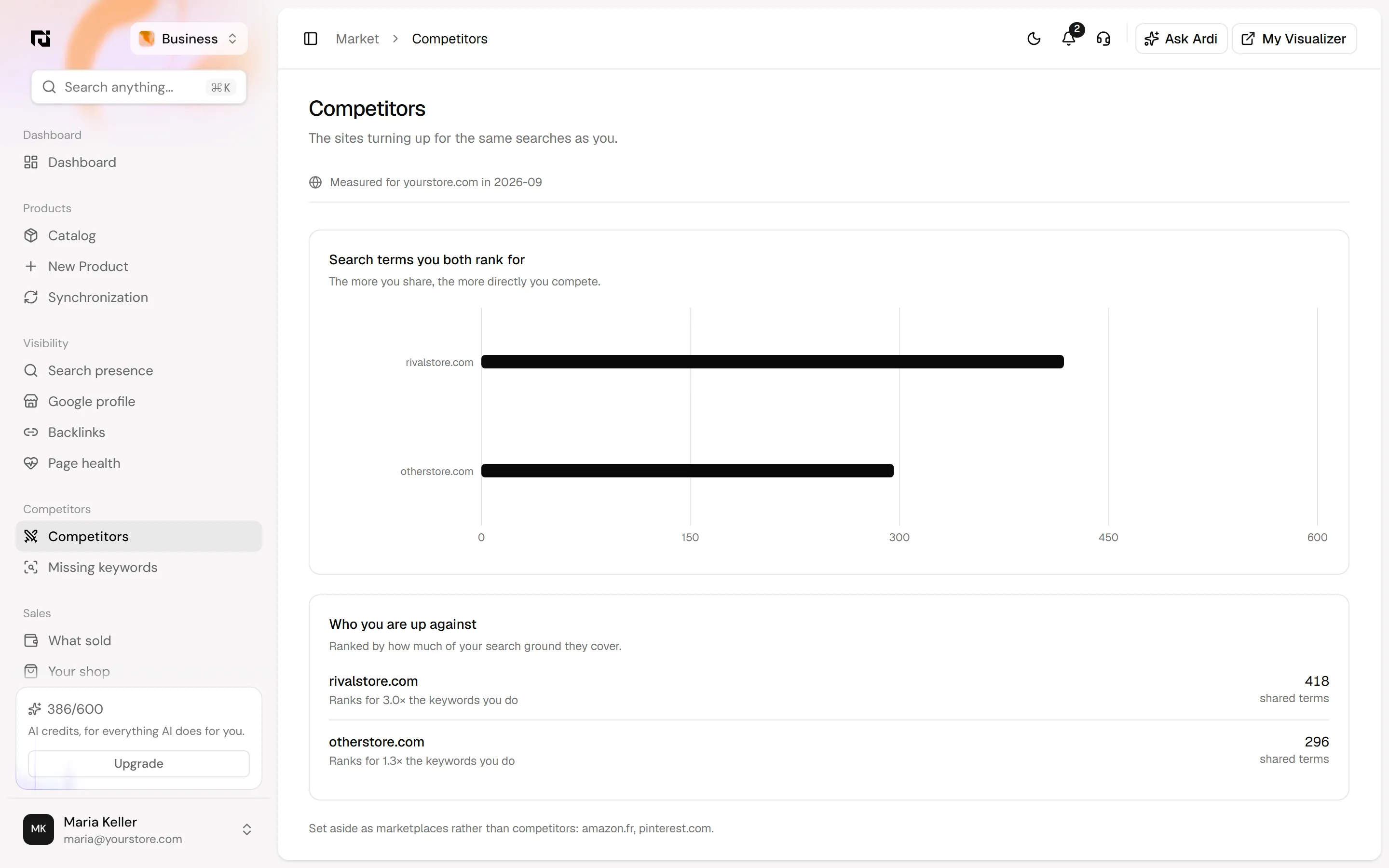
Go to Competitors › Competitors. "Search terms you both rank for" is a bar chart of how many searches you share with each competitor: the more you share, the more directly you compete. Below it, "Who you are up against" ranks them by how much of your search ground they cover, with a line such as "Ranks for 3.0x the keywords you do".
Further down, "What this site runs" lists the technology detected on a competitor's site, such as its shop platform, analytics, email and review tools. It is a quick way to see what a competitor offers that you do not, for example customer reviews or email capture.

Step 5: Work through missing keywords
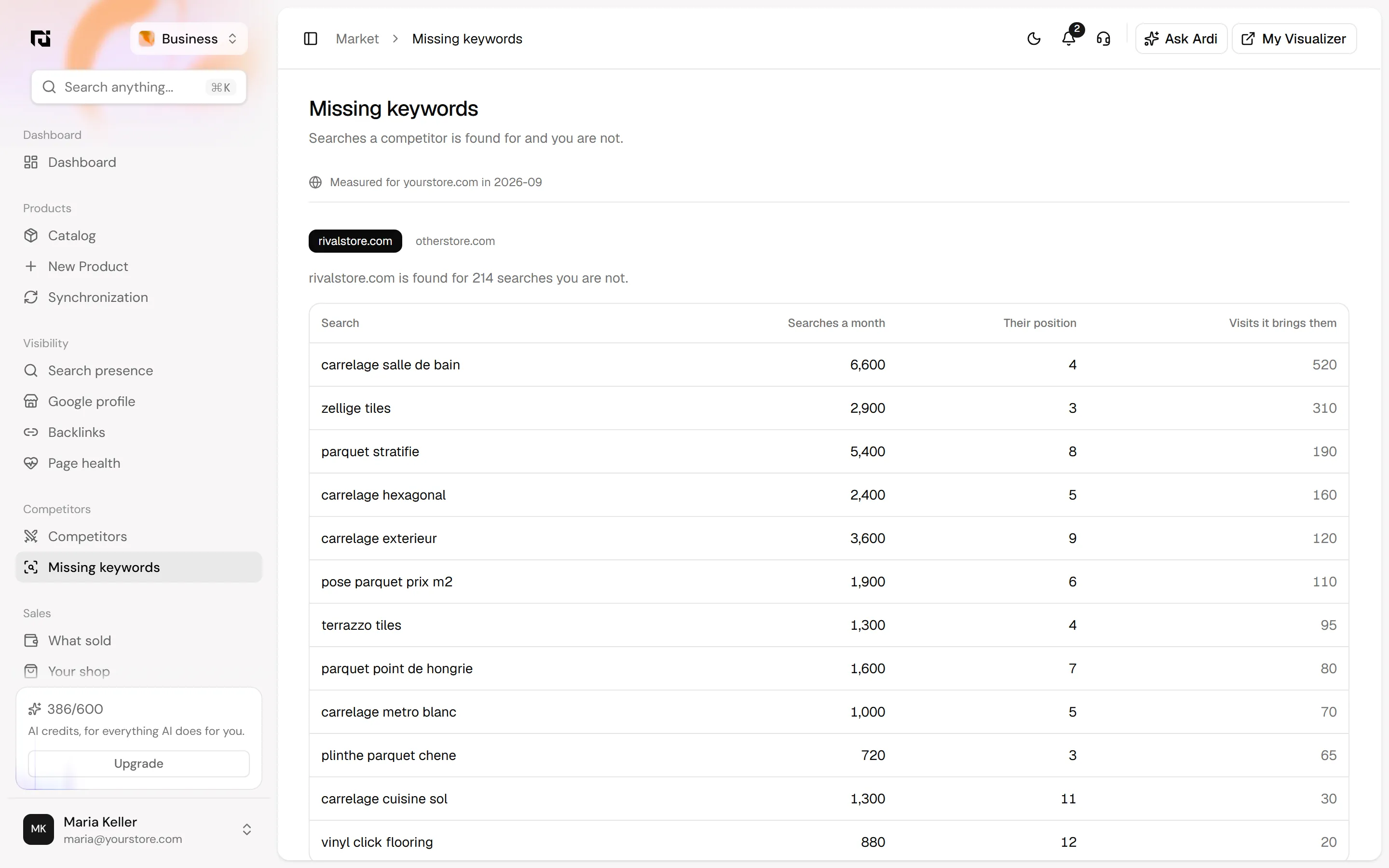
Go to Competitors › Missing keywords. There is one tab per competitor. The line at the top says how many searches that competitor is found for that you are not, and the table lists them with four columns:
- Search: what people type.
- Searches a month: how many people search it.
- Their position: where the competitor ranks.
- Visits it brings them: an estimate of the traffic it gives the competitor.
Each search links to the competitor page that ranks for it, so you can see what you are up against.
Step 6: Fix what failed on your home page
Go to Visibility › Page health. Four figures describe your home page: Score (out of 100, from the checks below), Usable after (roughly how long before a visitor can use the page), Largest content (roughly how long the biggest part of the page takes to show) and Broken resources (images, scripts or styles that failed to load).
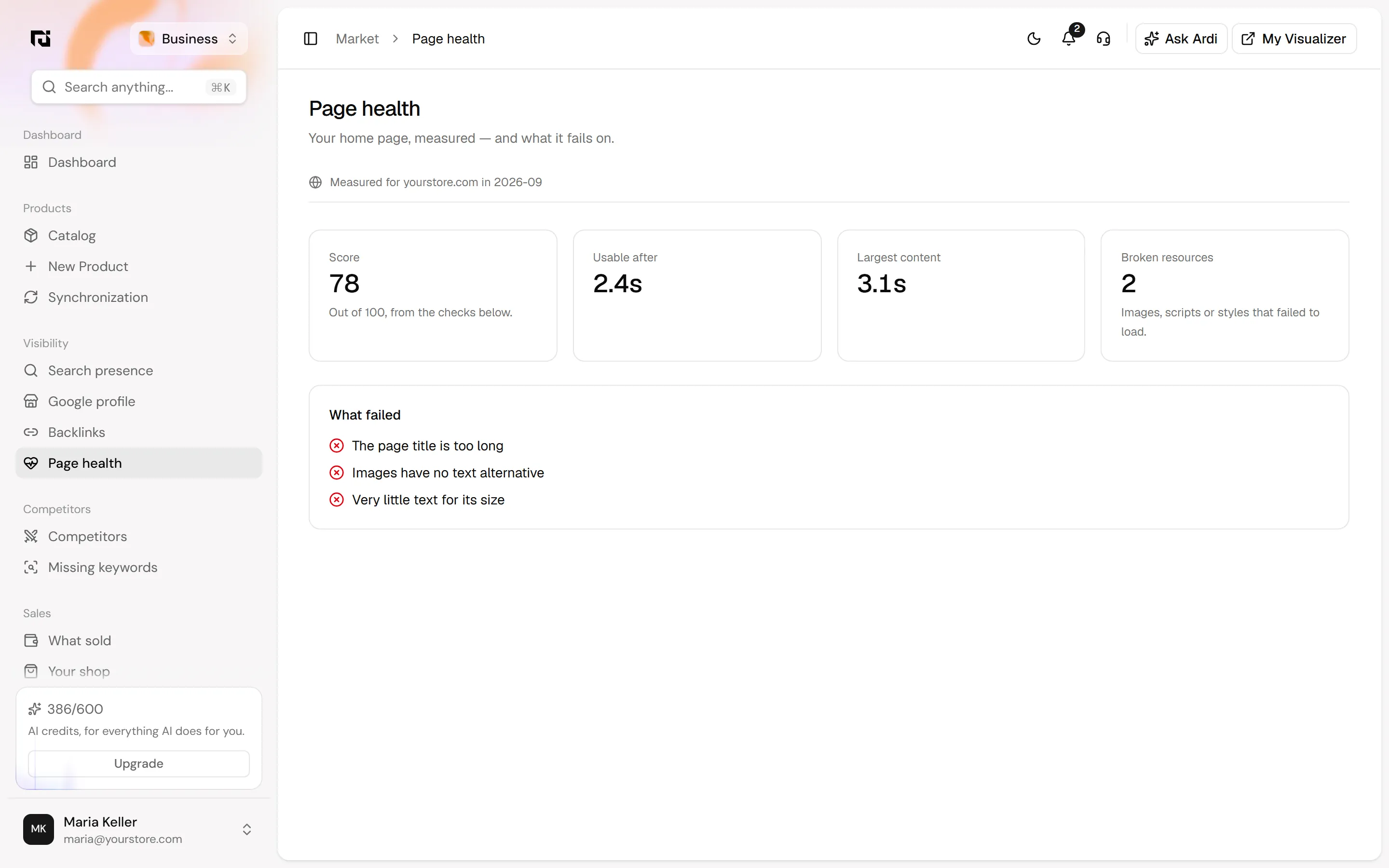
"What failed" lists only the checks your page did not pass, in plain words. Each one is a concrete job for whoever looks after your site.

Common mistakes
- Treating every missing keyword as a task. Some will be for products you do not sell. Skip them.
- Comparing with a marketplace. The Competitors page already sets big marketplaces aside. Compare yourself with shops like yours.
- Reading old numbers. Check the "Measured for" month before you make decisions. On the Search presence page, search traffic over time adds one point per analysis, so running it monthly builds the trend.
- Fixing the score, not the problem. The score comes from the checks, so work through "What failed" and the score follows.
How to check it worked
Changes in search take weeks, not days. After you publish new pages or fix your home page, run a new analysis the following month. Compare "Searches you appear in" and the count of missing keywords against the previous month, and check that the fixed items have left "What failed".
FAQ
Where do the numbers come from? From an analysis of your site, your search presence, your competitors and the sites linking to you, measured in a given month. The "Measured for" line on each page shows which.
Does running a new analysis cost anything? A full analysis uses AI credits. When Ardi proposes one, the card says how many credits it will use and waits until you click Apply.
Can I choose my competitors? The analysis finds the sites that share your searches and sets big marketplaces aside, so the list reflects who actually competes with you in search.
Is there a map of local competitors? No. The Competitors page compares sites by the searches they share with you.
Next steps
Pick one missing keyword and one failed check this week and fix both. Then ask your AI team to draft the page, with you approving it before it goes live. See everything the Business Analysis workspace covers, or contact us to run a first analysis on your shop.