Ardealy comes with an AI team: a lead called Ardi and a set of specialists that read your numbers, your catalog, your competitors and your marketing. They can do a lot on their own, but they never change your shop, spend your credits or publish anything under your name without a person saying yes.
This guide shows how that works day to day, and how to set up the two things that make the team useful without opening the app: routines and chat channels.
What you will set up: a habit of clearing your approvals, one routine (a morning brief), and one chat channel where the answer arrives.
How long it takes: about 20 minutes, plus a few minutes in Meta if you connect WhatsApp.
Before you start
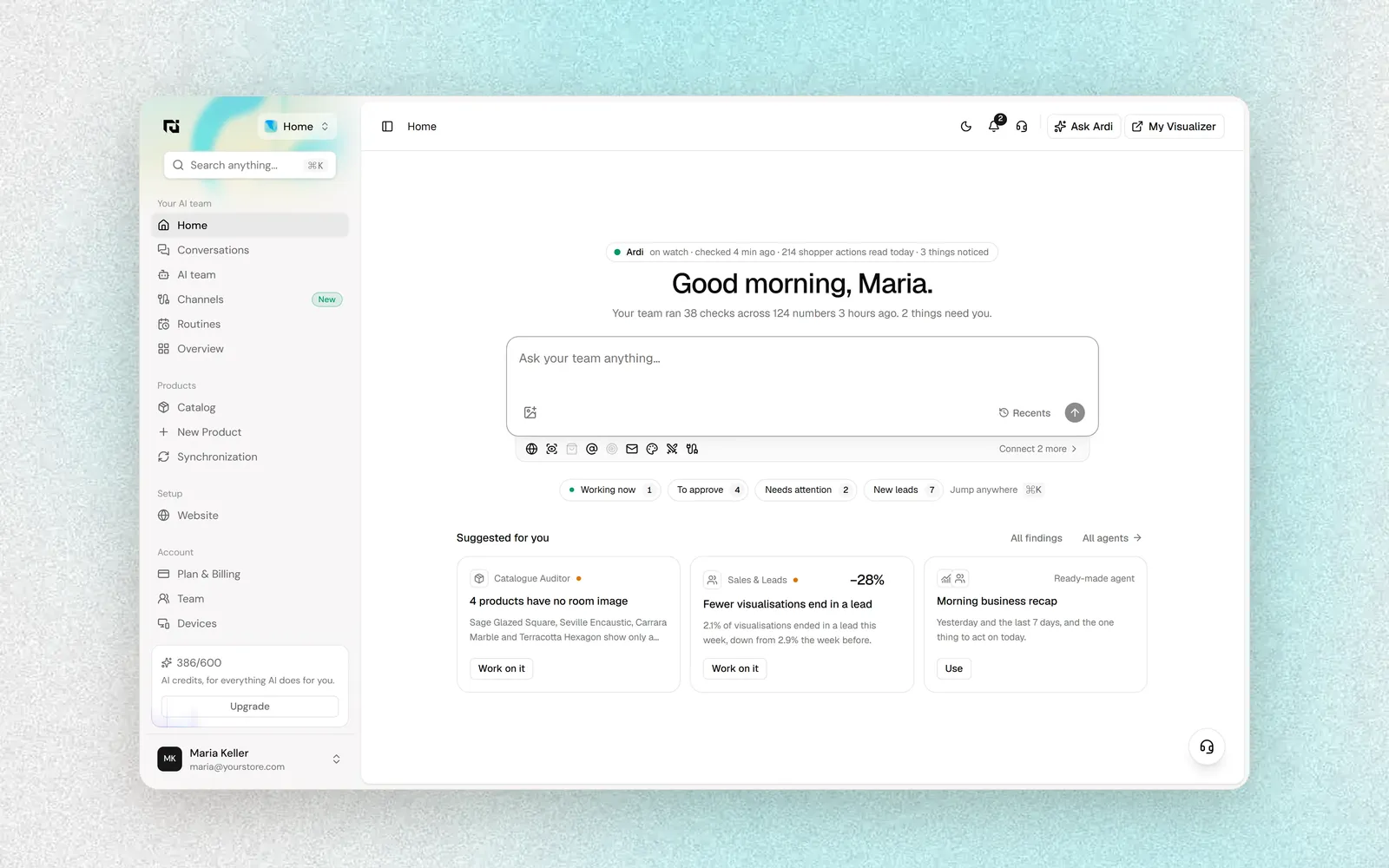
- Access to the Home workspace. Open the workspace switcher at the top of the sidebar and choose Home. The sidebar group "Your AI team" holds Home, Conversations, AI team, Channels, Routines and Overview.
- AI credits. Questions to Ardi, routine runs and some proposals use credits. Your balance is shown at the bottom of the sidebar.
- For WhatsApp: a WhatsApp Business number set up in Meta, with its phone number ID, a permanent access token and the app secret. For Slack or Telegram you need permission to add an app or bot to your workspace or group.
The rule: what waits for you
When Ardi or a specialist wants to do something that matters, it does not do it. It leaves a proposal card titled "Waiting for you", with a tag that tells you what kind of action it is:
- Changes your shop: anything that edits your catalog or your site, such as a new product description or showing a product in the visualizer again.
- Costs credits: work that spends your AI credits. The card shows how many, for example "40 credits".
- Leaves your shop: anything that goes out under your name, such as a social post or an email to a customer.
Reading your data never needs approval. Changing, spending and publishing always do.
Step 1: Start on Home
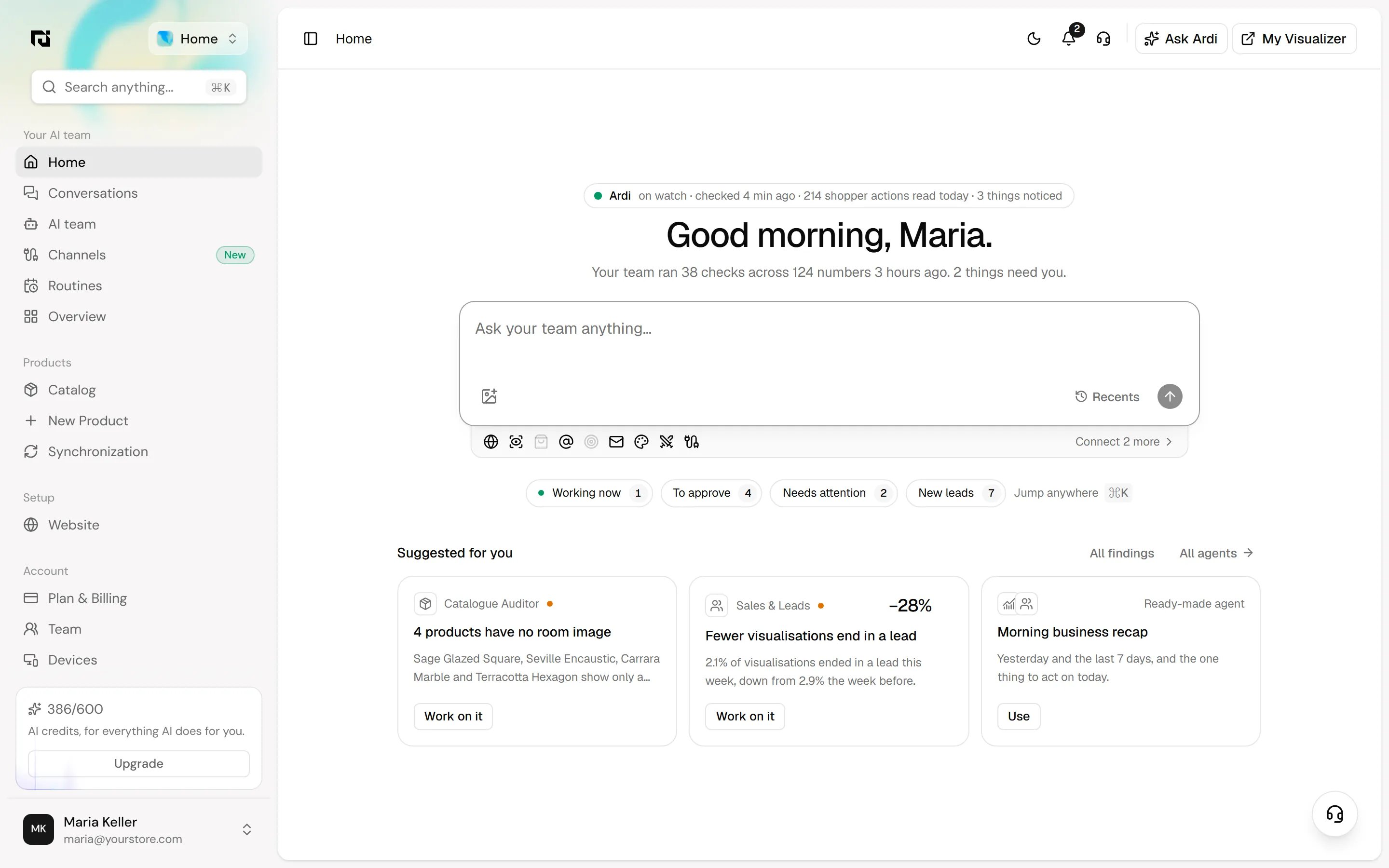
Home is the page to open each morning. At the top, the Ardi line shows when the team last checked your shop, how many shopper actions it read today and how many things it noticed. Click it to open "What Ardi is doing", with the recent activity log.
Under the "Ask your team anything" box are four counts: Working now, To approve, Needs attention and New leads. Below them, "Suggested for you" cards turn a finding into work: "Work on it" sends it to the team as a question, and "Use" starts a ready-made agent.
Step 2: Review and approve proposals
Click To approve to open the Work drawer. Under "Waiting for you" you see every proposal from every conversation in one place, followed by what is Running and what is Done.
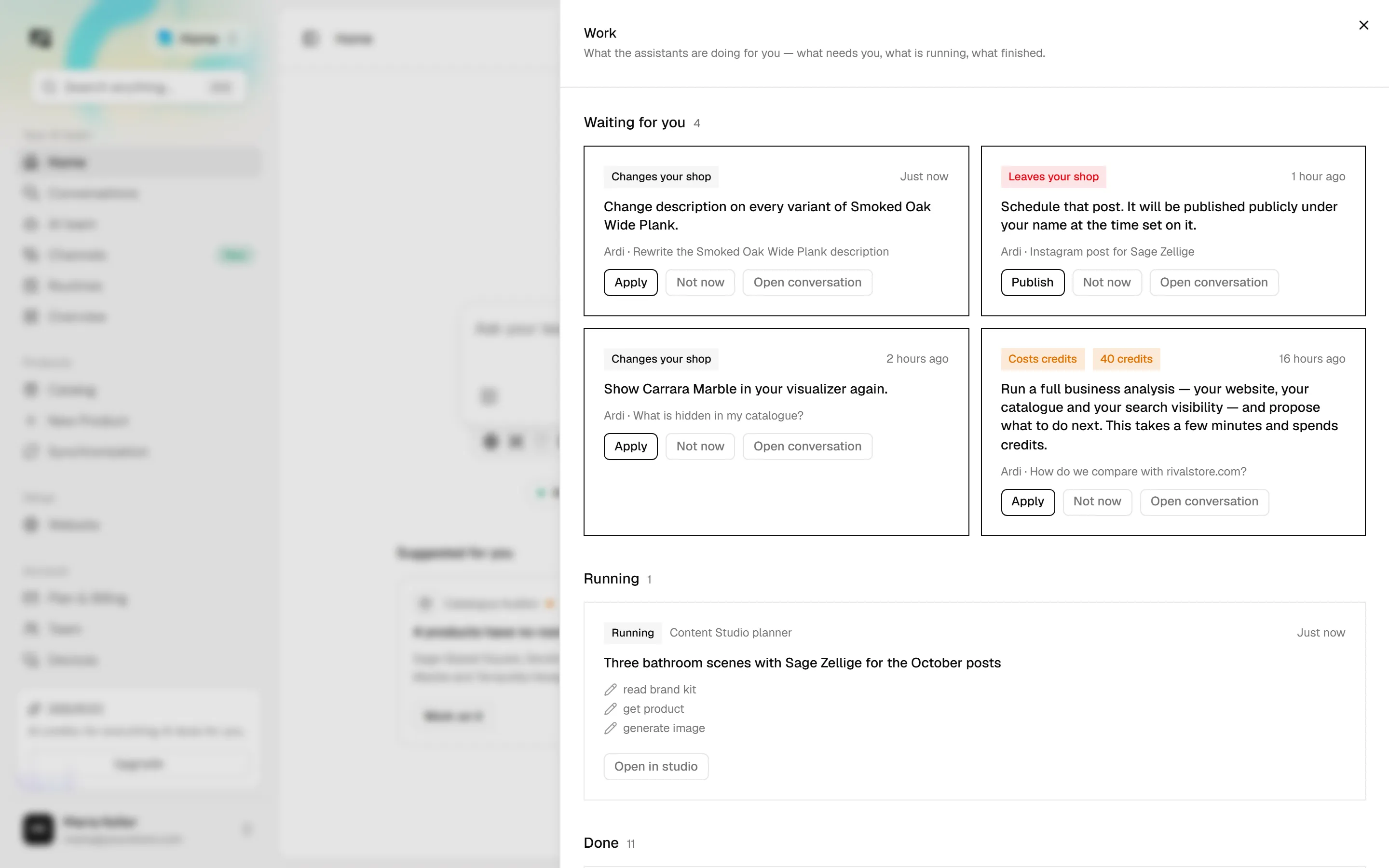
For each card you have three choices:
- Apply or PublishApproves the action. The button reads Apply for changes and spending, and Publish for anything that leaves your shop.
- Not nowDeclines it. Nothing happens to your shop.
- Open conversationOpens the conversation where the proposal was made, so you can read the reasoning or ask for changes first.

Edit before you approve
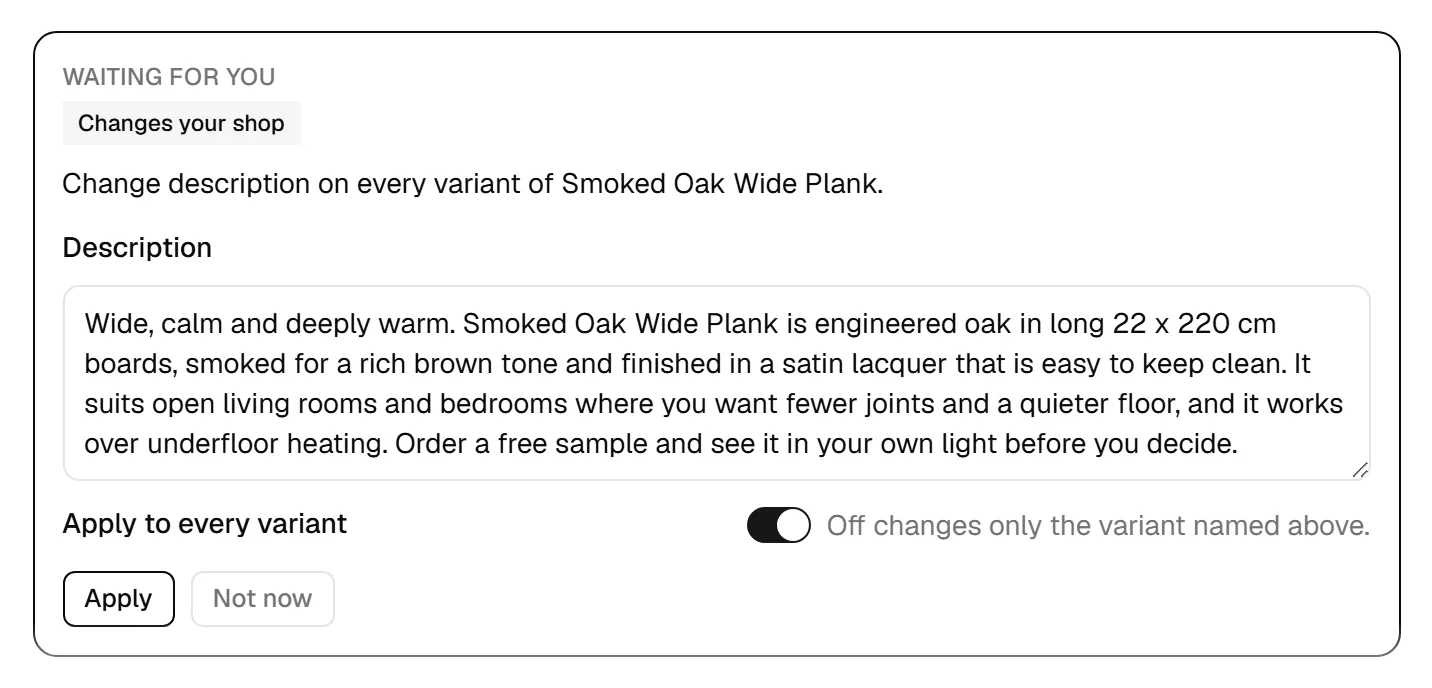
Inside a conversation, a proposal card can contain fields you can change. In this example Ardi rewrote a product description. You can edit the text in the Description box and choose whether it applies to every variant before you click Apply.
A post works the same way, with Publish in place of Apply. The reply above the card explains what was drafted and when it would go out.
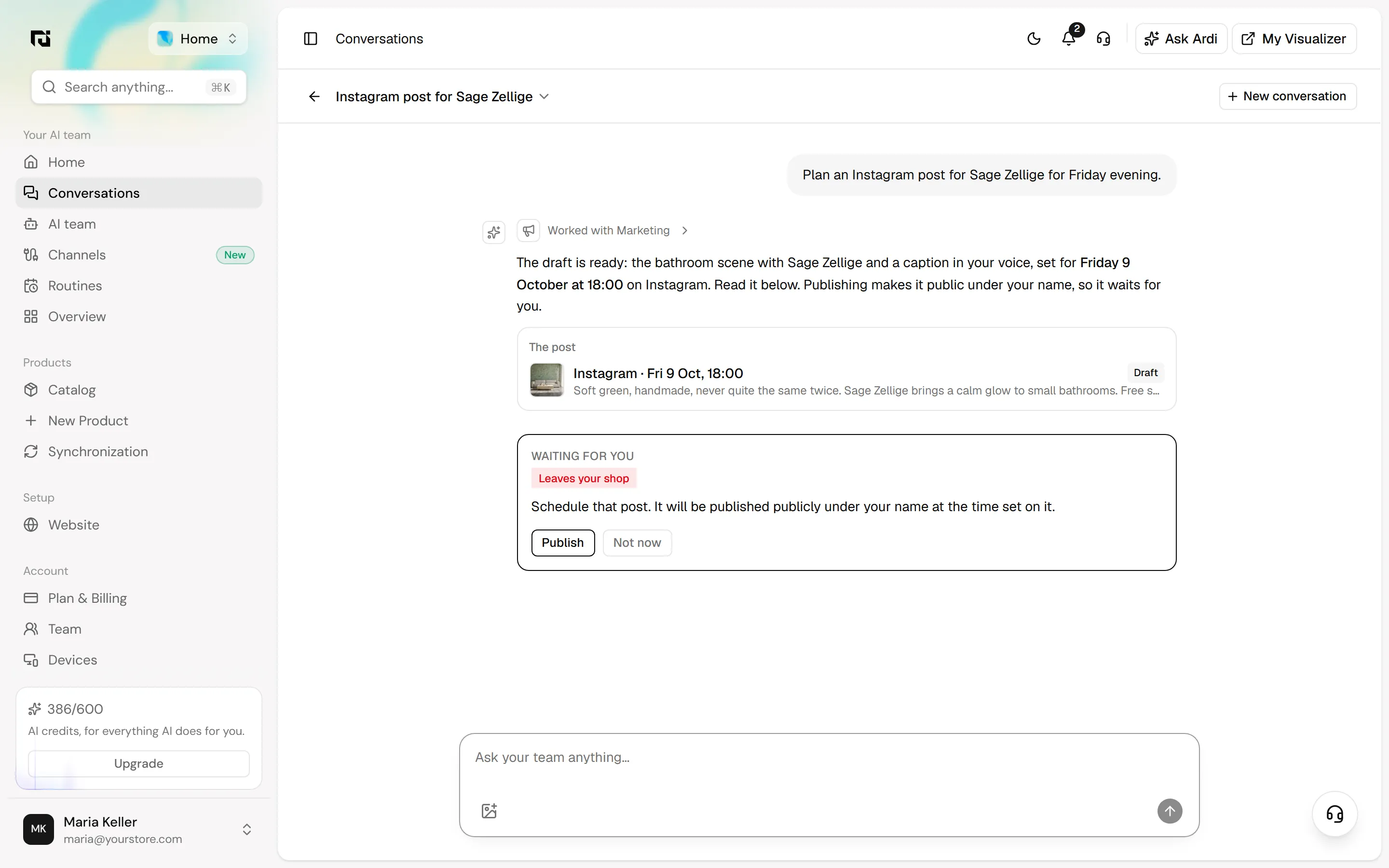
Once you decide, the card stays in the conversation marked Applied or Declined, so you can see later what was approved.
Step 3: Get to know the team
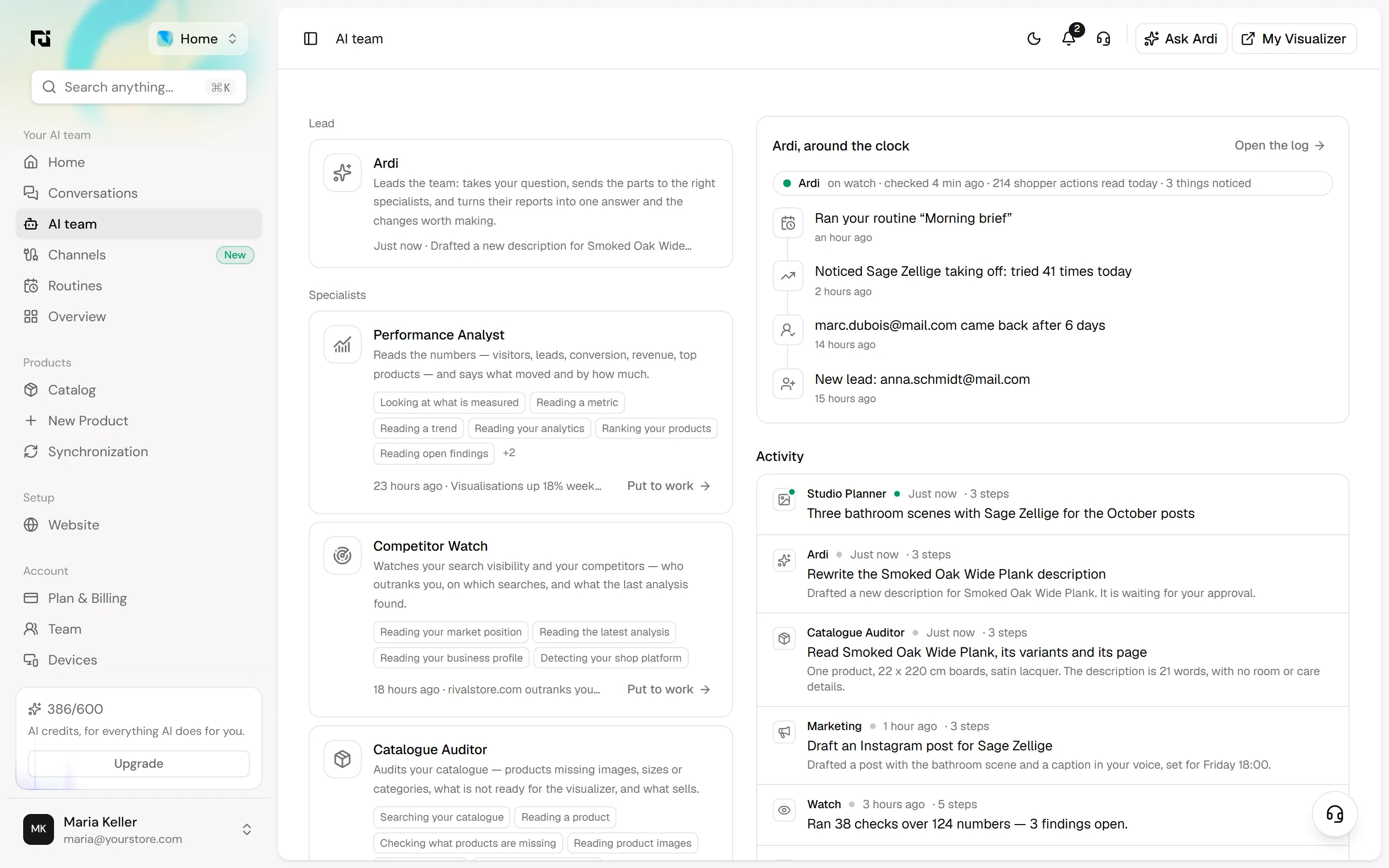
Open Home › AI team. Ardi is the lead: it takes your question, sends parts of it to the right specialists and turns their reports into one answer and the changes worth making. Each specialist card shows what it can read and the last thing it did. "Put to work" gives that specialist a job directly.
On the right, "Ardi, around the clock" and the Activity feed show what happened recently. Click an agent's card to filter the feed to what that agent did.
Step 4: Connect a chat channel
Open Home › Channels. You can add WhatsApp, Telegram, Slack or a webhook. Follow the card for the one you use, then link a chat: click "Get a code to link a chat" and send that one-time code to your WhatsApp Business number (or bot) from the phone or chat you want to link.
Then decide what Ardi does there:
- Answer questions: people in linked chats can ask Ardi anything. Each answer uses credits like a question on Home.
- Approve changes from chat: proposals arrive with Approve and Decline buttons, and replying "approve" or "decline" also works. Turn this off for a group where not everyone should decide.
- What Ardi posts here: tick the notifications you want, such as New lead or Weekly review.
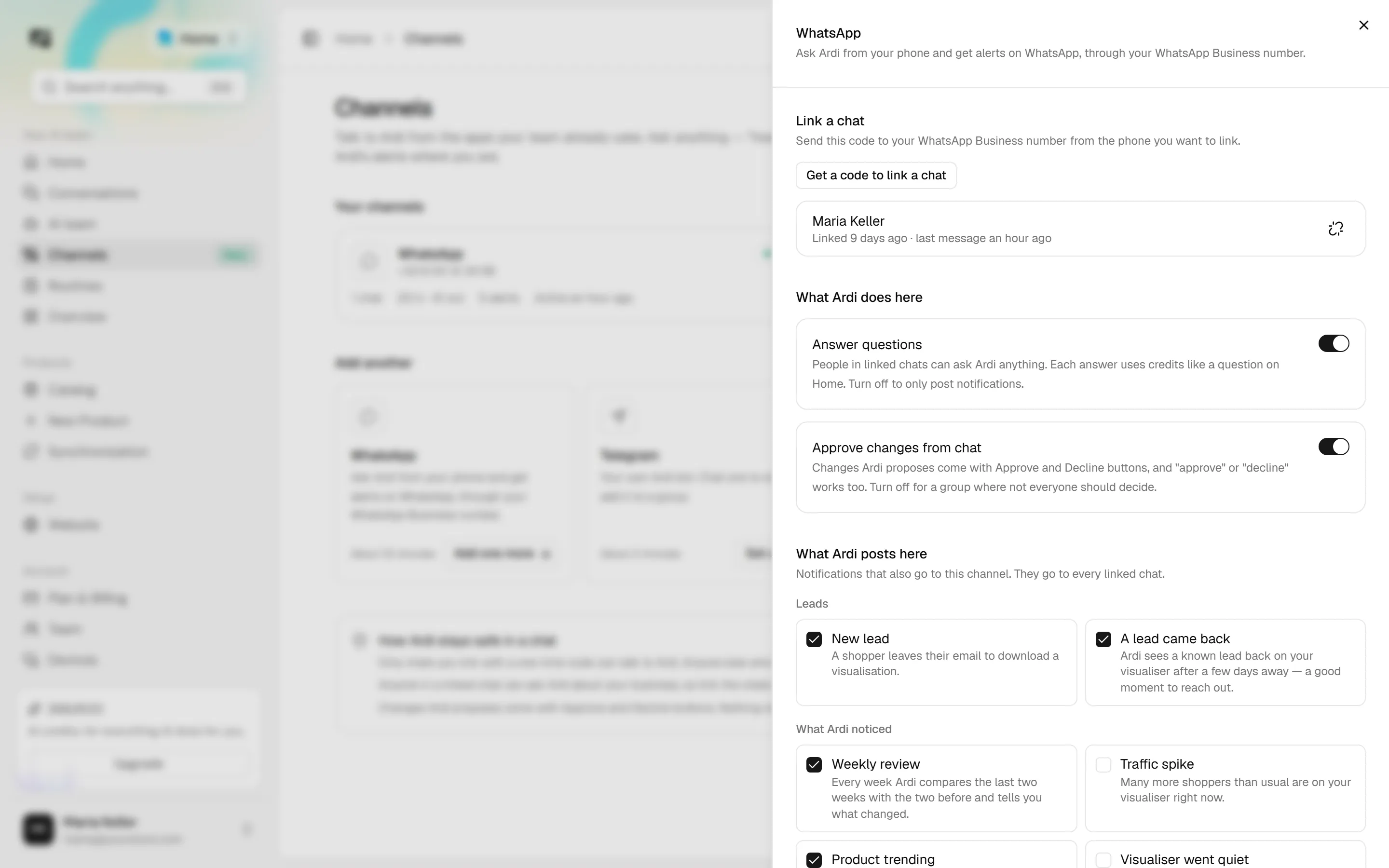
Use "Send a test message" to check the link works.
Step 5: Set up a routine
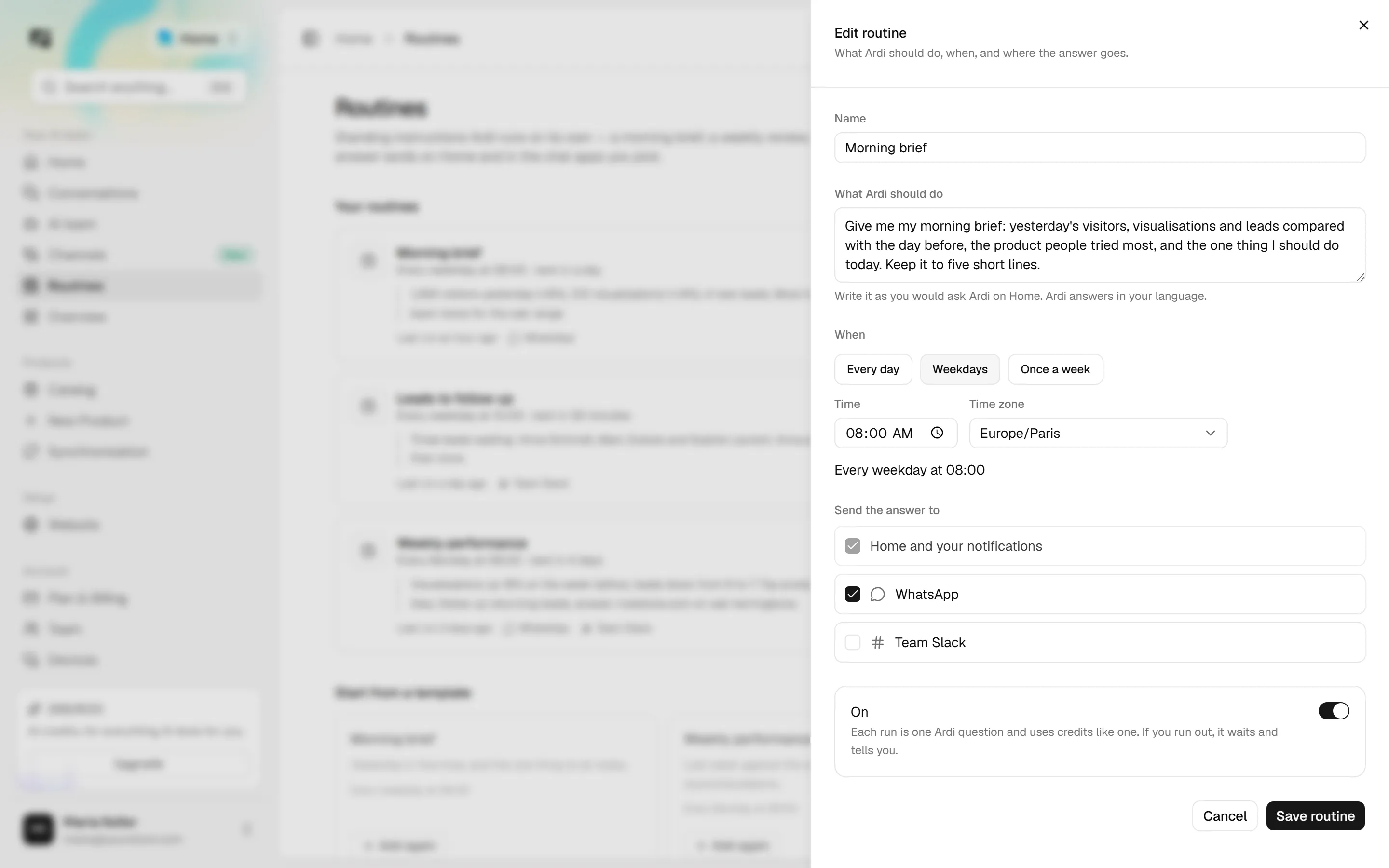
A routine is a standing question Ardi answers on a schedule. Open Home › Routines and click "New routine", or pick one under "Start from a template", such as Morning brief, Weekly performance, Leads to follow up, Content ideas or Competitor watch.
- Name itFor example, Morning brief.
- Write what Ardi should doWrite it as you would ask on Home. Be specific about what you want and how short it should be.
- Choose whenEvery day, Weekdays or Once a week, then the time and your time zone.
- Choose where the answer goesHome and your notifications always get it. Tick each connected channel that should get it too.
- Save routineLeave the switch On. Each run is one Ardi question and uses credits like one. If you run out, it waits and tells you.
Each routine card on the Routines page has "Run now" to try it straight away, an on/off switch, and a menu to edit it, open its conversation or delete it.
How to check it worked
- Click "Run now" on your routine. The answer appears in its own conversation, in the notification bell and in the channels you ticked.
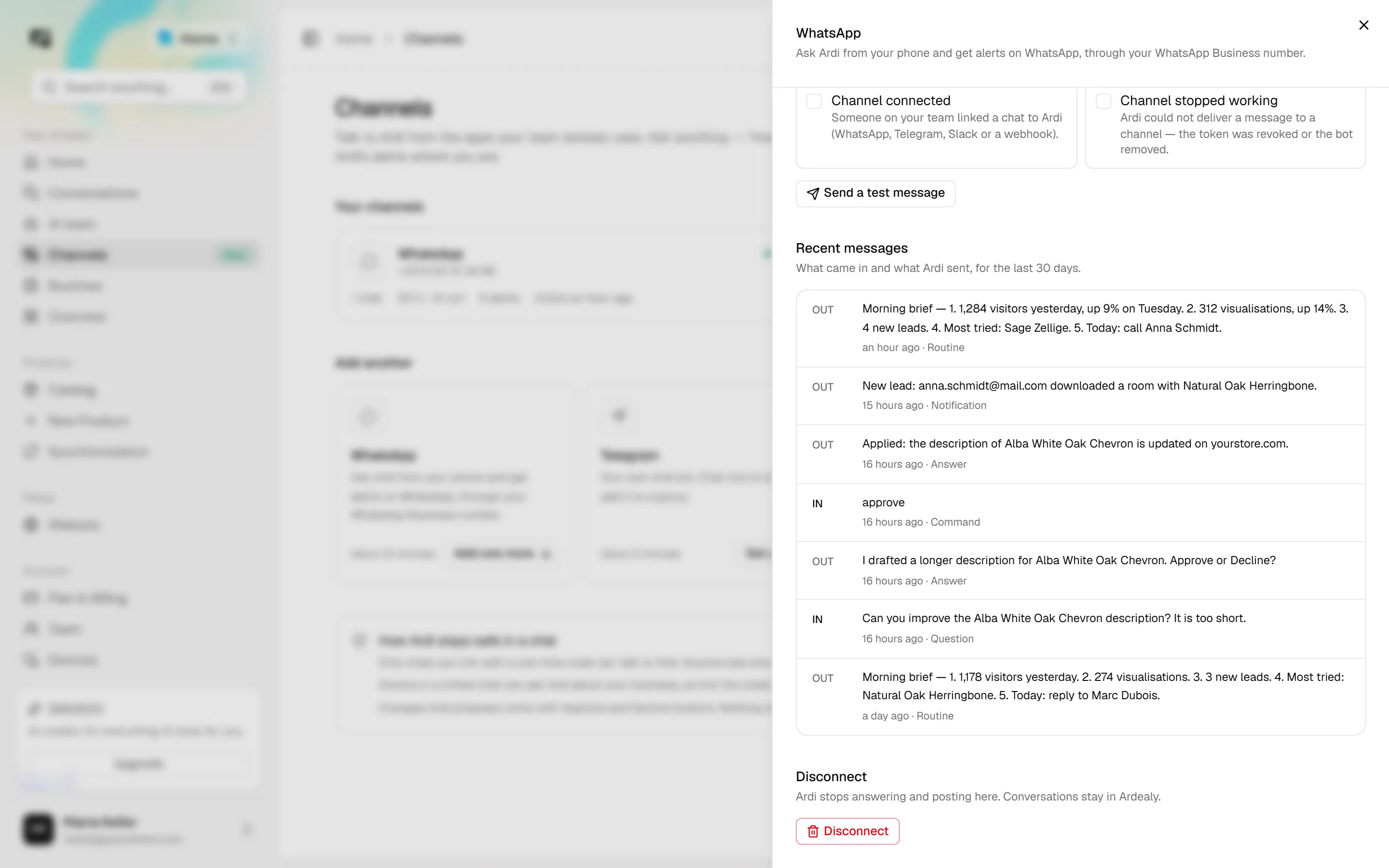
- In the channel panel, "Recent messages" lists what came in and what Ardi sent over the last 30 days. Here you can see a routine's morning brief, a lead notification, and a description change that was asked for, approved with a reply of "approve" and then applied.
Tips and common mistakes
- Clear To approve daily. Proposals wait for you, so work you have not approved simply does not happen.
- Read the tag before you click. "Costs credits" shows the amount on the card. "Leaves your shop" means the public will see it.
- Keep routine answers short. "Keep it to five short lines" in the instruction makes a brief you will actually read on your phone.
- Be careful with group chats. If several people share a channel, turn off "Approve changes from chat" unless all of them should be able to approve.
FAQ
Can the AI team change my shop without me? No. Changes to your shop, spending credits and anything that leaves your shop wait as a proposal until someone approves it.
What happens if I click Not now? The proposal is declined and nothing is changed. It stays in the conversation marked Declined.
Do routines cost credits? Yes. Each run is one Ardi question and uses credits like one.
Can I approve from my phone? Yes, if a channel is linked and "Approve changes from chat" is on. Use the Approve or Decline buttons, or reply "approve" or "decline".
Next steps
Start with one routine and one channel, then add more once you trust the rhythm. Read more about how the AI team works and how we keep your data and your shop safe on the trust page. If you would like a hand setting up WhatsApp, contact us.